Accept
Bid your budget as is.

Mobile Wash USA is an app where you post a washing job and local vendors bid on it. You pick the offer you want and pay in the app. We hold your payment until the work is done. Then you give the vendor a code that releases their pay. Here is each step.
Step 1
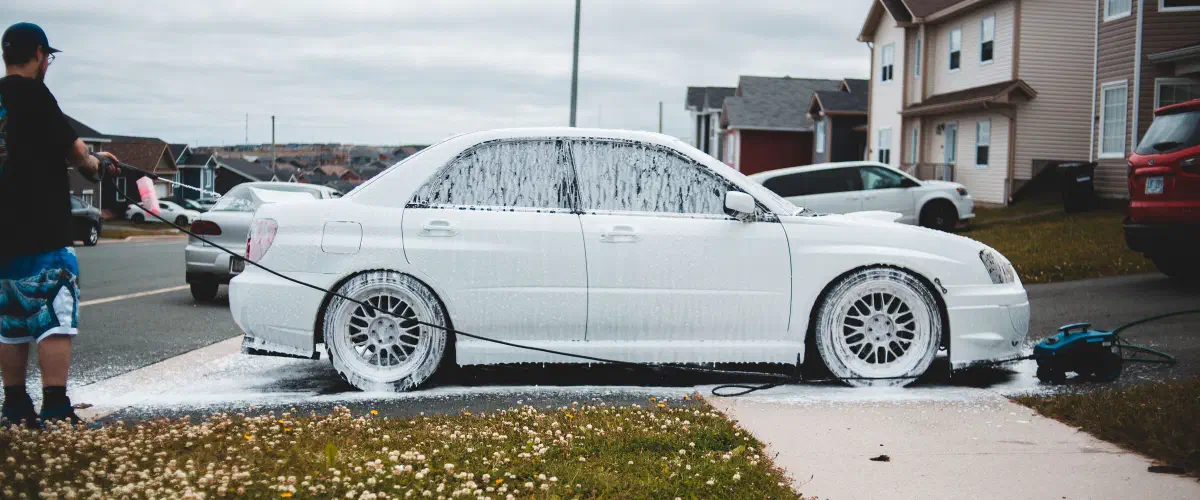
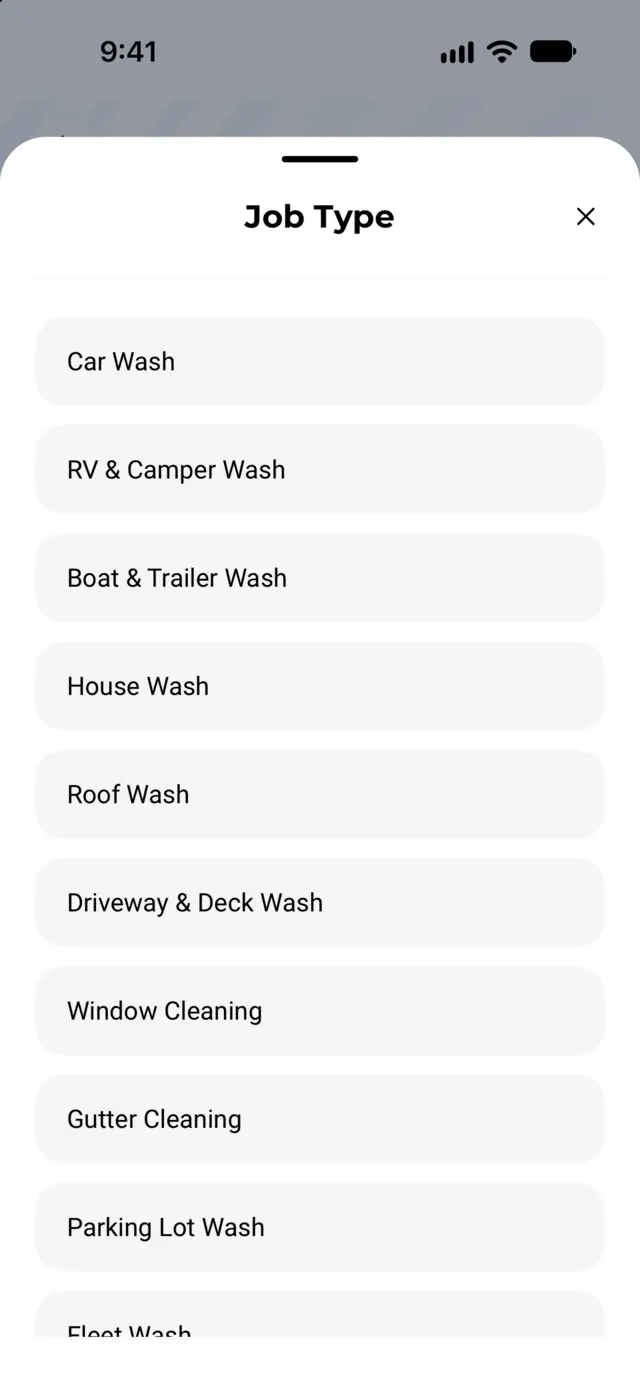
Open the app and pick one of our 11 services, like Car Wash, House Wash, or Parking Lot Wash. Then add:
Posting a job is free. Vendors near you can see it right away.
AI-assisted pricing
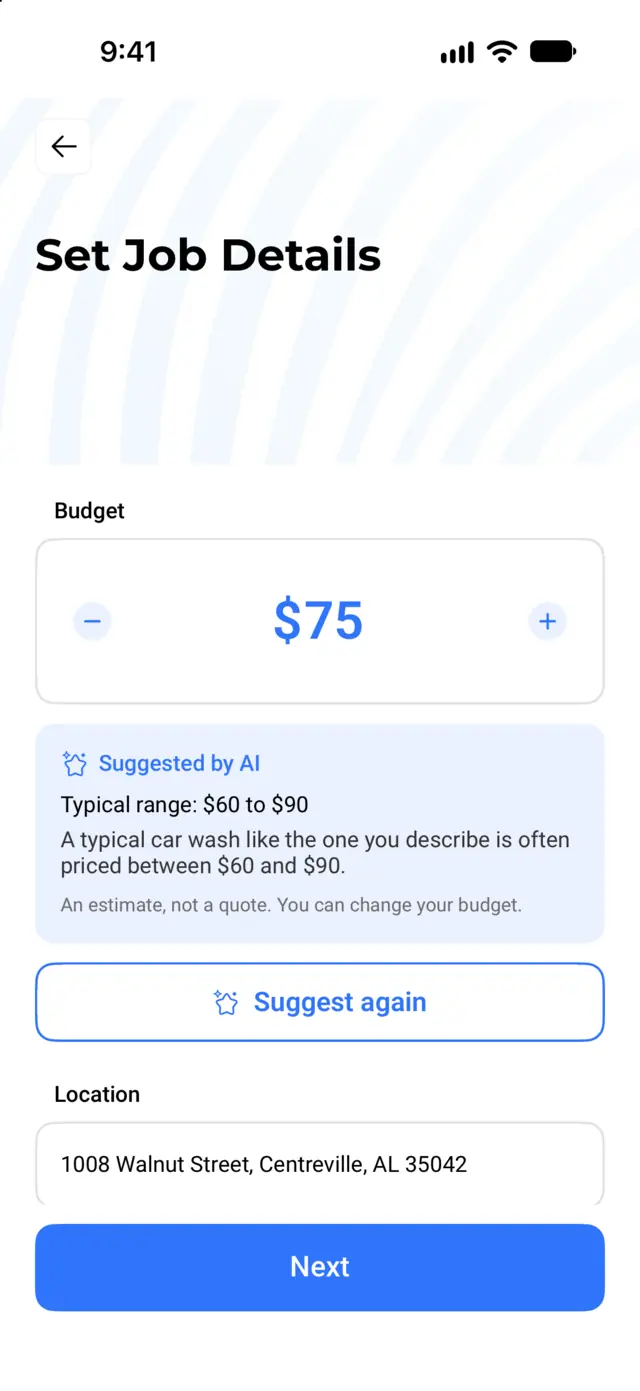
Most people don't know what a roof wash or an RV wash should cost. So when you post a job, you can tap Suggest a price with AI.
It looks at the service type, your job title and description, your city, state, and ZIP code, and your schedule. It never gets your street address, your photos, your name, your email, or your phone number, unless you type them into your description.
The suggestion helps you start in the right range. It does not check live prices in your area. The real price is set by the offers vendors send you.
Step 2
Vendors near you can see your job. Only verified vendors can bid. Each one can respond in one of three ways:
Bid your budget as is.
Bid a different price.
Skip the job. You are not told.
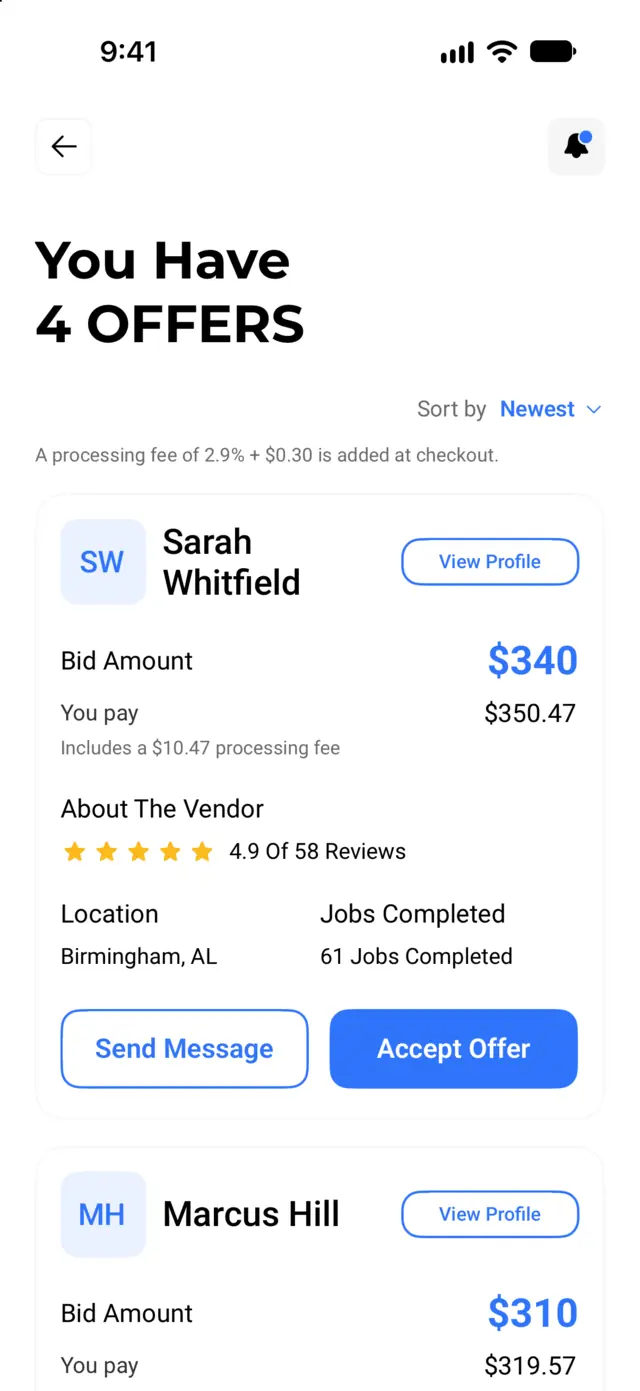
Every bid is an offer. Nothing is booked until you accept one. You get a push notification each time a new offer comes in.
Sort offers by newest, lowest price, or highest rating. Tap a vendor to see their profile, star rating, and reviews. Vendors can't see each other's prices.
Message any vendor who sent an offer. To keep you safe, phone numbers, emails, and links are hidden in chat until you accept an offer and pay.
Step 3
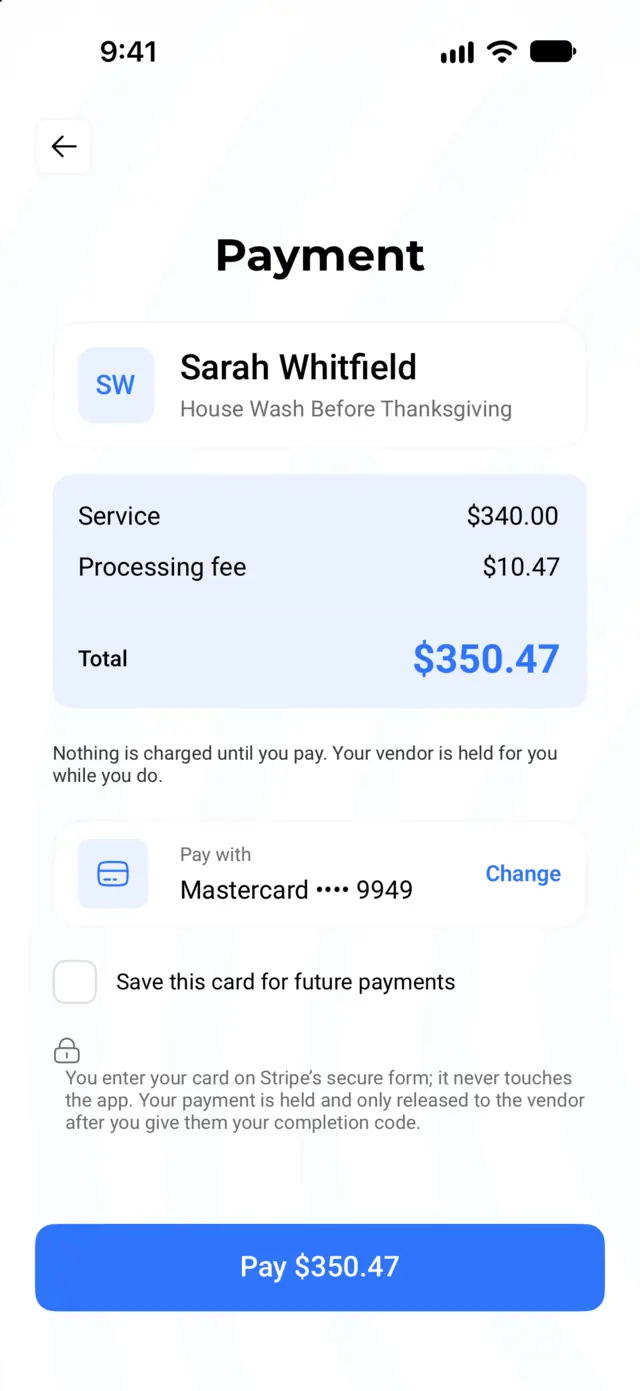
When you accept an offer, you pay by card in the app. Payments are handled by Stripe, so Mobile Wash USA never sees your full card number. You have 30 minutes to finish paying. If you run out of time, nothing is charged and you can try again.
Your total is the vendor's price plus a card processing fee of about 3% plus 30 cents. The app shows the exact amount before you pay. There are no other customer fees.
We hold your money until the work is done. The vendor does not get paid before then.
Step 4
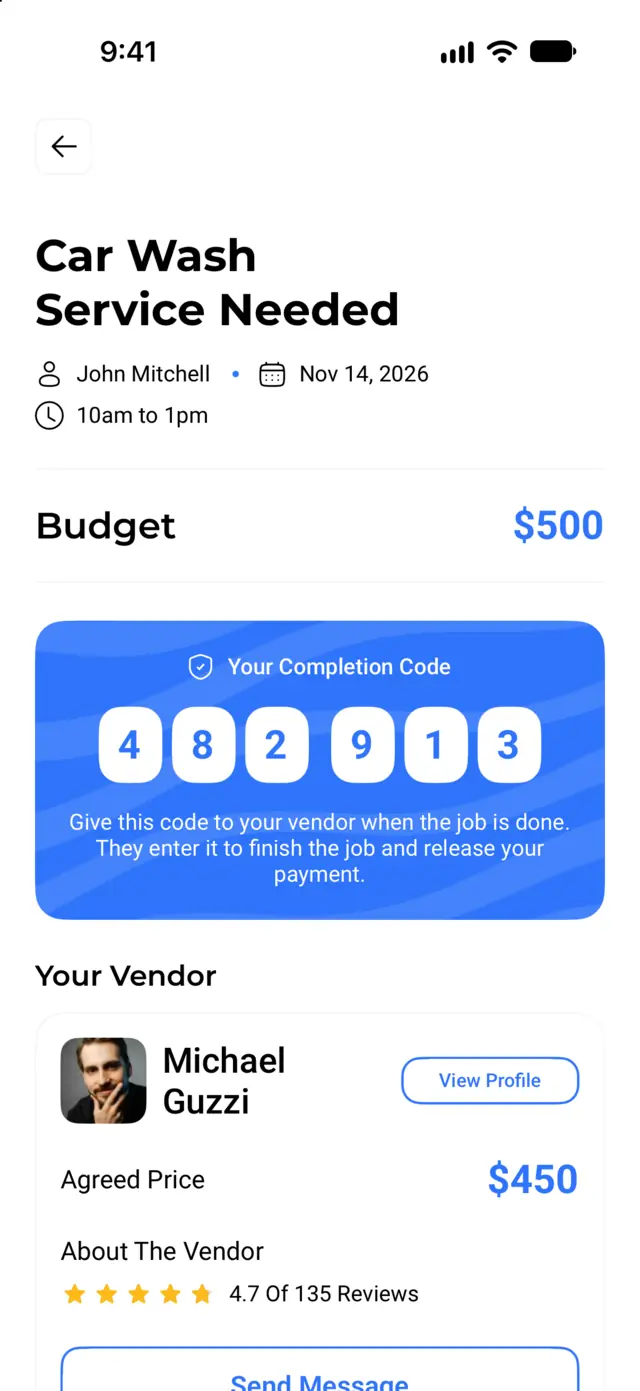
After you pay, your job shows a 6-digit completion code. Only you can see it. When you are happy with the work, give the code to the vendor. They enter it in their app, and that releases their payment.
Then you can rate the vendor from 1 to 5 stars and leave a comment. You have 14 days to leave a review.
You can track every job in My Jobs. These are the statuses you will see.
| Status | What it means |
|---|---|
| Waiting for offers | Your job is posted. No offers yet. |
| 3 offers | Vendors have sent offers. The number shows how many. |
| Payment pending | You accepted an offer. Finish paying within 30 minutes. |
| In Progress | You paid. The job is booked and your money is held. |
| Completed | The vendor entered your code and got paid. |
| On hold | Our team is looking into a problem with a paid job. |
| Cancelled | The job was cancelled. |
| Expired | No offer was accepted by 24 hours after the job's date. |
You can cancel a job for free any time before you accept an offer. After you pay, contact our support team from Help & Support in the app. Our team handles refunds. See our Terms of Use for details.
Sign up and get approved
Create a vendor account and upload your business license, insurance, and a government ID. Then set your services and how far you'll travel.
Set up payouts
Connect your bank account through Stripe inside the app so you can get paid.
Find jobs and bid
Browse open jobs near you, sorted by distance. Accept the customer's budget, send a counter offer, or pass.
Do the work and get paid
Chat with the customer, finish the job, and enter their completion code. Your payout is sent to your Stripe account.
The app is free on iPhone and Android. Have more questions? Read the FAQ.